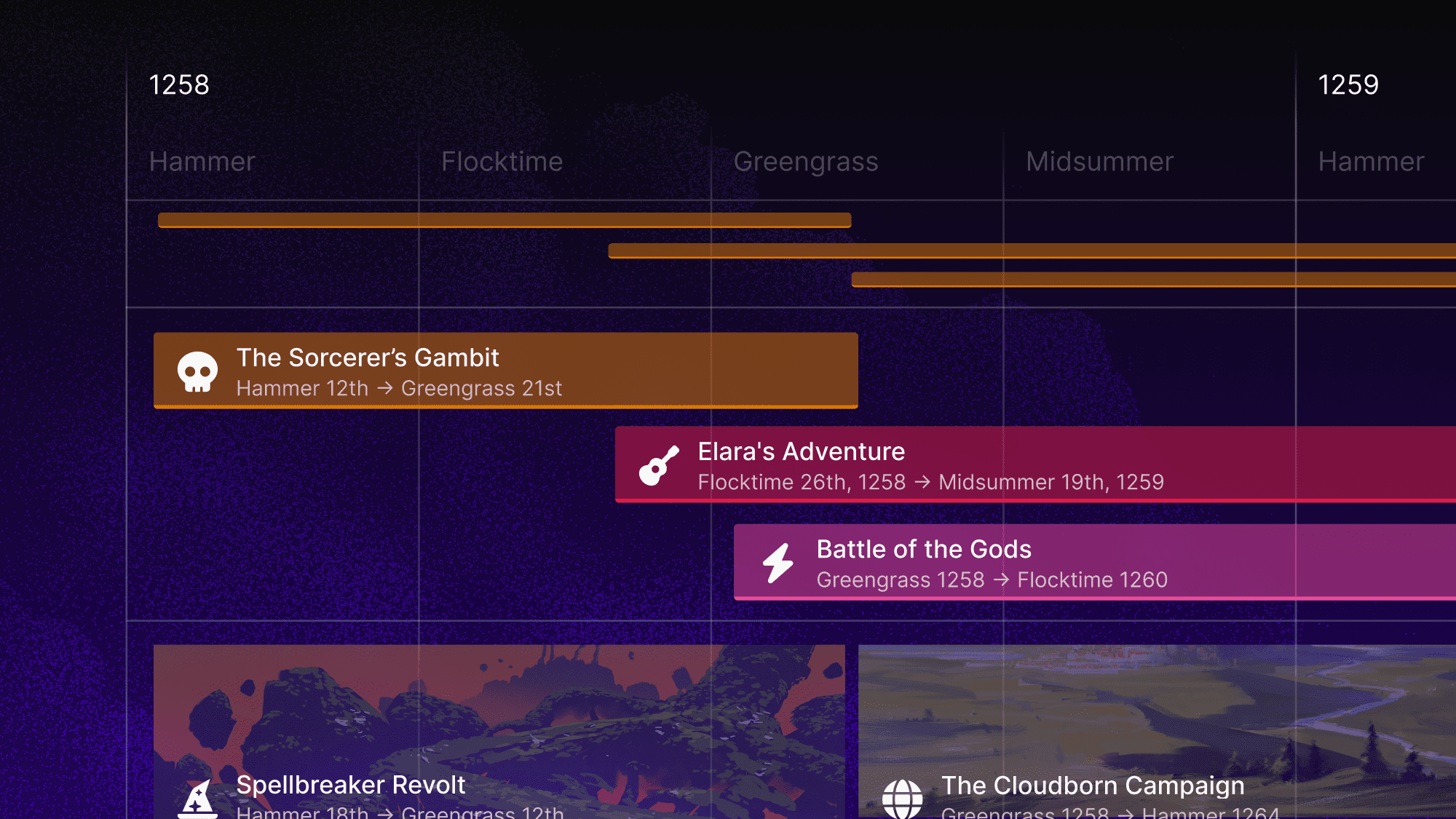
Timelines is a LegendKeeper feature that allows game masters, dungeon masters, and story makers to create comprehensive histories for their worlds: forming the past, recording the present, and planning their potential futures. If you’ve not used the Timelines feature before, you might be unsure as to how to get started.
What can Timelines be used for?
There are several ways that Timelines can enrich your worldbuilding:
- Provide important context for your fantasy world and its characters via its history - key world events, people and eras.
- As a way of recording events from your current tabletop RPG campaign or book storyline.
- As a tool for planning future events that might occur in your story, or for viewing your world’s entire storyline as a whole.
This subject is covered in more depth in the ‘Why Timelines is LegendKeeper’s best feature yet’ article on the LegendKeeper website.
Viewing your Timeline
LegendKeeper’s Timeline feature can be viewed in three different ways.
- Gantt view: This view is great for looking at your Timeline is a broader view, as it allows you to read events that take place across hundreds of years.
- List view: This view is better for observing how events are connected to one another, as well as how they’re chronologically organized.
- Calendar view: This view is ideal for finding events that take place over a much shorter period of time or happen on specific days.
You can switch between these view styles at any time, and see the same Timeline in any of these three styles.
Creating your Timeline
You might choose to go through the events in your Timeline chronologically, adding the earliest events first. Alternatively, you might add the most impactful events first, before including the events that happen as a consequence. You could even work backwards, placing the most recent events and then adding events as they’re discovered (this could be great if much of the history of your world has remained forgotten or hidden).
Whatever order you decide to add events in, the way you add events to your Timeline will be different depending on whatever view mode you’re using.
List view:

You can move through your List Timeline (past to future) by scrolling the page down.
To add an event in List mode, either select the ‘Add Event’ button found on the bottom of the Timeline or on the toolbar on the bottom of the page.
To input the time period or date/s in which the event took place or will take place on, select a start date from the calendar ‘Start’ menu, or manually enter it via the text box at the bottom of the pop-out menu.
You can enter the event name in the text box at the top of the menu, as well as select an appropriate icon from the menu button next to it. You can also select a corresponding color or image for your event by selecting from the style option.
Gantt view:

You can move through your Gantt Timeline using the hand tool found in the toolbar at the bottom of the page, swiping either left (forwards) or right (backwards) with your mouse.
You can view your Gantt Timeline in either a broader or more focused view by zooming in and out, either using the zoom in/out buttons at the bottom left of the page, or via the middle button of your mouse. Depending on where your mouse is on the Timeline, you’ll zoom in or out from that point in time.
To add an event to your Gantt Timeline, select the ‘Add Event’ button found on the toolbar at the bottom of the page. Where you then click on the Timeline will be where the event will start from - selecting in a more narrow view will allow you to create an event across a shorter timeframe (like a few years), whilst selecting in a broader view lets you create an event across a longer timeframe (like several centuries).
You can place an event across a timeframe by clicking and dragging your mouse either right (forwards) or left (backwards) and releasing. Alternatively, you can place an event on a single spot by simply clicking once.
You can enter the event name in the text box at the top of the menu, as well as select an appropriate icon from the menu button next to it. You can also select a corresponding color or image for your event by selecting from the style functionality.
Calendar view:

You can view your Timeline by month in the Calendar view. To switch between months, select either the left (backwards) or right (forwards) arrows either side of the month.
You can change the year by selecting the drop down menu next to the ‘Time System’ button, before selecting the button showing the current month and year, then manually entering in your chosen year. You can also move between years by scrolling through the months.
To add an event to your Calendar Timeline, you select the ‘Add Event’ button from the drop down menu and hover over the date on which you want the event to start, before selecting it. You can choose to add an end date by selecting the ‘Pick a Date (Optional)’ box and either selecting it from the pop-up calendar menu, or manually entering it in the text box.
You can enter the event name in the text box at the top of the menu, as well as select an appropriate icon from the menu button next to it. You can also select a corresponding color or image for your event by selecting from the style option.
Adding detail to your events
You can add further details to your events by linking them to another element from your world. This can be either an existing element or an entirely new element made specifically for the event.
Linking an event to an element will allow you to connect the event to this element and visa-versa, thereby providing additional context to both. For example, you could link a map of the location in which this event occurred, or the wiki page of a character who played a central role in the event. If you choose to make an entirely new event, you could make a page outlining the major points of the event, as well as the consequences it had on your world.

To link an event to another element in your LegendKeeper world, select the ‘Add’ button next to the ‘Link’ button at the bottom of the event creation/editing menu. Then, choose whether to link the event to an existing element or an entirely new page.
You can search through your existing elements by selecting the ‘Select Page’ option on the link menu, with the option to either scroll through the drop down menu of existing elements or manually typing in the ‘Search Pages’ text box.
To add a new page to link to, select the ‘New’ option on the Link page menu. You can add a name to the page, as well as choose an existing element to place the new page under, if you want to. You may then edit that page into whatever you want, by finding it on the menu on the left-hand side of the main Timeline page. You can link an event to only a single element.
Once you’ve linked an event, you can sync that event to the element it’s linked to, in order to replace the name and icon with the same attached to the linked element.
Organizing your Timeline
You can better organize your Timeline by categorizing your events into different groups. These groups can help you find certain events or series of events easier, by filtering specifically for that group or those groups when viewing your Timeline.
You might want to categorize your world events in a number of different ways:
- By individual storylines
- By a central character
- By a collection of NPCs
- By certain eras
- By specific factions or organizations
To place an event into a specific group, select the current group title from the top of the add event or edit event menu (this will initially say main:untitled). You can then select from either existing groups or add a new group to put the event in.
You can make a new group for an event by selecting the ‘Add Group’ option from the group dropdown menu and enter in the new title.
You can then view different groups by selecting the ‘Groups’ button from the main Timeline page, then filtering which groups you want to include via the drop down menu.

Making Timelines for different universes
You can make more than a single Timeline for your world, which could be useful if you have multiple versions of your world. For example, versions of your world history where certain crucial events are different, thereby leading to different outcomes.
You can do this by selecting the plus button next to the left-most Timeline underneath the title for the element you’re on, before selecting Timeline from the new elements option menu.
Events from your other Timelines won’t appear on this new Timeline, making it entirely separately.
Alternatively, you could make a new group on your current Timeline for events that occurred in different versions of your world - giving them a different color and icon to make them stand apart. This will then allow you to view all the events from each different version of your world all at once.
Time Systems in Timelines
Time Systems determine how time works in your Timeline:
- How many hours there are in a day
- How many days there are in a week
- How many months there are in a year
- How many days there are in a year
You can choose from a selection of Time System templates or make your own Time System in LegendKeeper.
- Gregorian: This is the standard time system, based on our own.
- Harptos: Based on the DnD Faerun calendar - 10 days a week, 17 months a year, 365 days a year.
- Eberron: Based on the DnD Eberron calendar - 28 days per month, 12 months a year, 336 days a year.
- Exandria: Based on the Critical Role universe calendar - 11 months per year, 328 days per year.
- Greyhawk: Based on the DnD Greyhawk calendar - 22 days per month, 16 months a year, 364 days a year.
- Scrolls: Based on the Elder Scrolls calendar - same as Gregorian, with changes to the names of months and years.

You might choose one of these because you’re a fan of the setting it’s based on. Alternatively, you might pick one because you like the format of time recording well enough to not need to make a custom time system.
You could decide to make a custom time system, because none of the pre-set options fit what you had in mind for how your world records time.
Choosing or making a certain time system will depend on whether you want a time system that informs a core concept of your world (like a natural or scientific phenomenon), or a time system based around an important historical event. Alternatively, you might make a time system that reflects a dominant religious belief or ideological belief in your world.
To select a different time system, open up the time system menu from the main Timeline page, and choose the drop down menu with the currently selected time system, then choose a new time system.
To make your own time system select the icon next to the currently selected time system and choose the ‘Add System’ button at the bottom of the menu.
Then select between months, weeks, days and years/eras on the left-hand side. You can change the number of months in a year, the number of days in a week, the number of hours in a day (and minutes in an hour), and add different eras to your time system. You can also change the names of months, days and eras. You can also choose months to add leap year days to.
Get started with the Timeline tool by opening up your LegendKeeper account or making one. Start a free trial now!